latest update: October 9, 2023
Reading or Writing?
In the battle of the eTablets, the first thing to determine is your primary purpose: reading or writing.
If you’re looking for a reading device that does simple writing, go with either a Kindle Scribe (if you basically read Amazon or Libby books) or a Boox (if you read from other locations)–the Page, Leaf2, and Galileo are the comparable models to the other devices here in terms of both cost and size.
If you’re looking for a writing device that does simple reading, go with either a reMarkable or a Supernote.
I was looking for the latter, so I contrasted the reMarkable 2 and the Supernote A5X to note-taking apps on an entry-level iPad (9th generation, 64 GB) using an Apple Pencil. The apps I considered were Element Note, Goodnotes, Nebo, Noteful, and Noteshelf, which imo are the 5 best choices available without subscriptions (I don’t use apps that require subscriptions).
My analysis in the HARDWARE section below is based entirely on the units that reMarkable and Ratta sent me. From comments online, I’ve noticed that my experience often differs from that of other users: color, screen, power consumption, and so forth all appear to differ across brand, style, and unit–particularly the Supernote. Your physical experience may not be as pleasant or as unpleasant as mine (which doesn’t speak well for the consistency of either company’s manufacturing process….).
Either way, despite what images on their websites show, neither the reMarkable nor the Supernote has a white writing surface. It does not look like paper. It is not white. Don’t expect something that looks like a Kindle with its LEDs on. It’s more like a Kindle with its LEDs off: grayish or yellowish depending on the brand, model, and unit.
The Comparisons
COST
Category | reMarkable 2 | Supernote A5X | R or SN? | iPad 9 | Overall Winner? |
|---|---|---|---|---|---|
Tablet | $300 + tax | $415 (no tax–not sure if that’s standard or just for the state I live in) + $19 shipping | reMarkable | $330 + tax (on sale lately at Amazon for $270/280) | reMarkable or iPad (if on sale) |
Pen (1st party, basic) | $80 ($130 with eraser) | $44 ($75+ for more stylish options) | Supernote | $100 (on sale lately at Amazon for $80/90) | Supernote |
HARDWARE
Category | reMarkable 2 | Supernote A5X | R or SN? | iPad 9 | Overall Winner? |
|---|---|---|---|---|---|
Visual impression | This is the gadget you’d want to bring to school before everyone else so that everyone would think you’re cool Bezel is same color as screen w/ a nice shadow at the border, presenting a nice, grey look | Looks more like a toy than the r2, but it has more of a “can take a hit and keep on ticking” vibe Screen is darker than the bezel and has an unpleasant (imo) yellow tint, though I swear it changes because at different times–under the same light–it’s looked olive, maize, light-asparagus (see Apple’s ‘crayon’ colors)… but not gray | reMarkable | Same as the r2, although iPads are so ubiquitous nowadays that they’ve lost that “cool” factor | reMarkable |
Surface | Screen: smooth glass; back and side are metal, including a strip on the front left | Screen: slightly pebbled to the touch but not noticeable when writing; everything is plastic | Tie | Same as the r2 without the front strip on the left | For me (and my Raynaud’s Syndrome) the SA5X, but silicone skins are cheap enough for the iPad (the front on the r2 is a problem for me, as cases don’t cover it) |
Touch sensitivity (hand/finger) | Extremely poor tap recognition; swiping gestures are okay, but using my finger to tap on a tool icon or the on-screen keyboard was frustrating at best | Very good recognition; it’s not an iDevice, but it noticed 90%+ of my touches instantly It’s almost too good; the palm recognition isn’t as good as on an iPad, and several times I activated tools I didn’t want to when the toolbar was at the bottom of the screen | Supernote | Ideal | iPad |
Battery life | I charged it once during four weeks of sporadic use, turning it off at the end of the day most times | I charged it twice during three weeks of sporadic-to-light use, turning it off at the end of the day most times | Tie | If iPads ran on AAs, we all should have bought stock in Duracell years ago., | reMarkable or Supernote |
Standard Pen/cil | Nice weight; one-third of its circumference is flat in order to magnetically attaches to tablet Didn’t feel like pencil-on-paper to me (however, I only ever use mechanical pencils, so “real” ones might be different); writing feels more like using a slender “fine-point”style (not the needle-nose) Sharpie | Tapers from rounded square to rounded triangle halfway to the tip (prevents rolling); no magnetic attachment because the tablet casing is plastic Smooth, gentle feeling when writing; produces a gliding sensation (like a very smooth gel pen) Tip never needs replacement; includes cap | Supernote | Only version 1 of the Apple Pencil works with this model (no eraser) Nice weight, but not grippy like the r2 pen; tip with the most durable feel; smooth writing but with that tap-tap sensation on glass | Apple Pencil’s not bad, but the feel of the others are more akin to that of using a “real” notebook |
Eraser on pen | Wide with a slight curve makes it poor for precision erasing but nice for erasing an entire line/area My advice is to buy the Kindle Scribe basic pen instead: much lower cost ($30), the Scribe pro’s eraser is awkward imo, and this pen is just as capable writing on the tablet as the official pen | None on basic pen, but some of the “stylish” options have eraser buttons | reMarkable (but if you really want an eraser, buy the Scribe’s version for $70 less) | None | Nobody wins; use the tablet’s eraser tool instead |
WRITING
Category | reMarkable 2 | Supernote A5X | R or SN? | iPad 9 | Overall Winner? |
|---|---|---|---|---|---|
Included templates (backgrounds) | 39; template choice is made when notebook (i.e., note) is created | 28; you have to go into the toolbar after creating the note to choose a different template other than the standard lined look; make your own templates from pdf, png, jpg, or webp files | If you want to make your own, Supernote; if not, reMarkable | Several of the apps have tons of templates with optional color backgrounds; Nebo’s options are the most limited by far | iPad |
Layers | Yes | Yes on Standard notes; No on Text-recognition notes | reMarkable | Some do (but they can’t recognize handwriting) | reMarkable |
Moving pages | Very easy; same process to move a page around inside a note as to move a page to a specific location in a second note | Identical process to the r2 | Tie | Some can move them, and some of those can place them in desired position in note | Tie |
Toolbar location | Left side of screen for right-handed users, right side for lefties; docked; can be minimized to single icon | All four sides available when docked; minimized when floating; H or V floating; can be minimized to single icon | Supernote | Most apps place it on left or top with no customization, but a few do; most apps don’t allow for minimizing to one icon | Noteful (iPad): all four sides are available for docking (no floating) and customization allows you to select which tools are in the smaller area |
Toolbar “clutter” | Clean interface; a few icons near the top, a few near the bottom | The toolbar is so overloaded that you have to tap a […] button to see the rest of the tools (it essentially has enough tool icons to fill two toolbars) | reMarkable | Goodnotes is overloaded, but not to the SA5X’s extent; the others are customizable. Goodnotes’ and Nebo’s occupy two rows of space whereas the other three occupy one | Noteful & Noteshelf (iPad) |
Toolbar customization | None | There are three slots for pen tools that can be used however you like (same pen, three different sizes; two for one pen, one for another; etc.); otherwise, none | Supernote (…by default) | Most apps, no, but some do | Noteful & Noteshelf (iPad) |
Pen tool | Best selection (7) by far, but size customization is limited to S, M, L; colors: black, white, gray (5); b, w, g, red, blue (3) | 3 total, but really only two for writing: “needle-point” is very size-customizable; “ink” has S, M, L; “marker” is one size only (highlighter-thickness) | reMarkable | Generally 3 or 4; most with infinite size customization | iPad or reMarkable |
Has “highlighter” | Yes–4 colors (yellow, green, pink, grey); colors appear when you view an exported note on a color screen (i.e., computer); snap-to-text option | Only for PDF annotation | reMarkable | Yes; customizable color and size; “straight line” option included | Any of the highlighters are really just markers; all the iPad apps offer the best option given that any color can be used |
Eraser tool* (free, stroke, selection) | Free and selection; only 3 sizes for the free, and I found the smallest to be too large to be useful | Handwriting-recognition notes: stroke and selection; “Standard” notes: free (only 4 sizes, but all small enough to be as precise as you need) and selection | Supernote | Generally, all three are available (selection version by using the lasso tool) | Element Note (iPad); it’s the only free eraser in the entire lot with a size that is completely customizable (also has stroke eraser) |
Lasso tool | Options: cut, paste, and resize only Sometimes, to drag a lasso’d section, I had to tap on the lasso’d section before tap-and-holding to drag it; drag has slight delay | Options: copy, cut, move (to another page), resize, mark as Heading, mark as Keyword, add to calendar, create link Drag is smoother than on the reMarkable | Supernote | Most have copy, cut, change color, delete, and resize; various differences like changing stroke style, converting to text; dragging is extremely smooth; GoodNotes and Element Note require you to tap the lasso’d selection to bring up the popup menu | iPad |
Handwriting conversion** [See photos in carousel following table] | Result is placed on a new page of the note after the one with the handwriting; original handwriting is kept Easy to export the pages of text to an OCR’d pdf Tends to interpret consecutive lines as part of the same sentence (great for continuing sentences, bad for lists) Can somewhat interpret list indentation Works on all layers of a note | Available on Real-Time Recogition notes and Standard ones (main layer only); in the former, the result appears in a large pop-up window with the option to export result of page as text document Cannot export recognized text as a pdf, only txt or Microsoft Word Can interpret every line of writing as a separate line, chopped up sentences but working okay for lists or combine multiple lines of writing between vertical gaps into a sentence structure Noticeably faster than reMarkable on short notes but about the same on multi-page, longer notes | This one depends entirely on your needs with regards to the recognized text | Nebo does it as you write; Noteful doesn’t offer the feature | Again, personal needs dictate the choice here |
Handwriting search | Can only search the converted text; when you select a result, it takes you to the page with the text, not the associated handwritten page; can only search after using the text-conversion tool | Selecting a search result locates the handwritten word itself; can search after using the text-conversion tool or by leaving the device dormant for 30 seconds** | Supernote | Only Noteful can’t; aside from Goodnotes, the rest can search and locate handwritten words instantly (true real-time recognition) | iPad |
Tags | Yes, but the popup available on the note screen is small, the tag management page can’t organize them, and the device comes with 2 that you can’t get rid of You can’t add tags prior to using them If you remove a tag from a note, and no other note is using that tag, the tag is deleted from the device and you have to reenter it if you want to use it on a future note | Yes (they’re called keywords here) As with the r2, the tag management page can only list them by most recent You can add keywords to the master list before using them, allowing you to just tap the keyword to add it later Keywords remain in the master list until you delete them | Supernote | Only Noteful and Noteshelf have them (alphabetical sorting on both); Goodnotes uses “outlines,” which is similar but really inconvenient | Noteful & Noteshelf (iPad) |
Shapes | No | No | – | All 5 apps have a shape tool (Element Note’s is best imo) or the ability to sketch your own and have the app clean it up (Nebo in Notes only) | iPad |
Ruler tool | No | No | – | Noteful only | iPad, barely |
Zooming | I found it very iffy; hard to get it exactly the size I wanted | Only available for PDFs, not notes | reMarkable (by default) | All apps can zoom the screen (except for Documents in Nebo) | iPad |
**Supernote’s claim of “real-time recognition” is a false one in my opinion, because you can’t immediately search your handwriting and you can only search your handwriting if you do one of two things: select the text conversion tool (just like with the reMarkable) or let the Supernote sit idle for 30 seconds after you finish writing (you can’t go to another note, menu, anything–you just have to leave the note open and sit there) before you can search. Supposedly, the Supernote is running recognition while you write, allowing for a speedier conversion when you select that tool, but, as I wrote above, I only noticed a comparable difference in speed on relatively short notes. If you want real-time recognition, based on what I consider “real time” to be, you’ll need an iPad.
READING
Category | reMarkable 2 | Supernote A5X | R or SN? | iPad 9 | Overall Winner? |
|---|---|---|---|---|---|
PDFs | Ones with color perform horribly (turning pages looks awful as it tries to update the view); slow performance with large files; didn’t always fit entire page on screen | Ability to adjust contrast (unfortunately, this feature is only for PDF viewing) makes even light-toned text easy to read; color documents cause much less of an issue; half-page view and trim | Supernote | Get a dedicated pdf-reading or -annotating app; there are several good and free or inexpensive ones to choose from | iPad |
eBook support [See photos in carousel following table] | EPUBs: 6 font sizes, 5 fonts (2 serif, 2 non-serif, 1 mono), 2 justifications, 3 margin settings, 3 line width settings Text can look very weird depending on your font choice; all text looks the same (even when eBook uses different fonts) Can view pages as scrollable icons (similar to Kindle), showing thumbnails of surrounding pages In-book hyperlinks don’t appear to function No contrast adjustment | EPUBS: 7 font sizes, 4 fonts (1 serif, 1 non-serif, 2 mono), 3 margin settings, 3 line width settings EPUBS: You can load your own fonts to use those as well Text can look very weird depending on your font choice but it does differentiate between types of text No thumbnail view In-book links work Contrast adjustments, as with PDFs You can read Amazon books via the Kindle app, but the low dpi and inability to adjust the contrast made it much more of a strain on my eyes than a Kindle | Supernote, because of the Kindle app, but aside from the code text in the ePUB I viewed on each device (which made it unreadable on the other tablet), the books probably looked better on the r2 | Apple Books, Kindle app, Libby, you name it | iPad |
FILES
Category | reMarkable 2 | Supernote A5X | R or SN? | iPad 9 | Overall Winner? |
|---|---|---|---|---|---|
File UI | Home Screen: top level folders and notes (thus, completely editable) Icon view: tiny folder icons in rows above large note Preview icons; a darkened folder icon indicates contents are present List view: tiny folder icons appear ahead of small note Preview icons Preview icon can be set to last page visited or first page of note | Home Screen: 6 prepackaged folders (Notes, Docs, Inbox, Screenshot, MyStyle, Export); no adjustments Icon view: large folder icons precede large note Preview icons in intermixed rows; folders shows icons of 1st 4 items in folder List view: medium folder icons ahead of medium Preview note icons or small folder icons ahead of small note icons Preview icon is the note’s cover, which can be set as any page of the note or an image | reMarkable (though the SA5X’s image-cover option is very nice) | Lots of variation: multi-level folders, notebooks as folders-of-notes and folders as “collections”, notebooks as notes All except GoodNotes rely heavily on sidebar for folder organization | reMarkable (I’m not a fan of file management with a sidebar) |
Moving files and folders | Select first item with tap-and-hold, add more with taps, select new location | Folders/files: Select first item with tap-and-hold, add more with taps, select new location | Supernote | Folders/files: a mix of select-and-choose-destination without the tap-hold, and drag-and-drop | iPad |
Ease of transferring files | Excellent; connections for DropBox, Google Drive, OneDrive & reMarkable cloud | Ranges from horrible to meh: manually sync the device to one of the cloud sync folders, enter a local wifi web address to interact with your files in a browser window (looks good on desktop, not on mobile), or connect via USB-C (directly to a computer or using a USB stick) and use an Android-file-transfer app to move the files If you need to transfer large PDFs back and forth often, the USB option would be much faster than R’s cloud options | reMarkable | Most have options like accessing the Photo Library, but importing from the Files app is standard | iPad |
Export options | Send to DropBox, Google Drive, or OneDrive as pdf; email as pdf, png, or svg; use companion app Using the reMarkable cloud allows you to use the extremely nice companion desktop app to get files onto your computer You can’t save the export on the device–it has to go to one of the 3 clouds or be emailed | Options: png, pdf, txt, docx; entire note or just certain pages can be exported; exports to the Export folder in the home folder–from there you would then use the iOS app (or the options mentioned above on your computer) | reMarkable | pdf and png options; they use the iOS Share menu to send the file where you want | iPad |
Sync options | DropBox, Google Drive, OneDrive & reMarkable Device auto-syncs when you make changes | DropBox, Google Drive & Supernote; I could only get the Supernote connection to work Manual sync only | reMarkable | Only Nebo offers more than iCloud sync (DropBox & Google Drive) | iPad (if you use iCloud); reMarkable otherwise |
OTHER
Category | reMarkable 2 | Supernote A5X | R or SN? | iPad 9 | Overall Winner? |
|---|---|---|---|---|---|
Companion apps | Yes, for both mobile and computer; makes sending and receiving files from those devices extremely easy and intuitive; can export to pdf through the app Displays thumbnails of the documents in icon view | There’s one for mobile (none for desktop), but it’s atrocious; it’s one of the worst apps I’ve ever downloaded from the App Store You need to perform an export on the SA5X itself to produce a document that your computer or phone can read No thumbnail previews; combined with the difficulty naming files, it’s a nightmare trying to find the file you want | reMarkable | Element Note, Goodnotes, and Noteshelf have companion Mac apps | Tie |
Features hidden behind subscription | Infinite cloud storage (which you probably don’t need), 3 extra years of device protection, “exclusive subscriber offers,” and the ability to add/edit text notes on your mobile device or computer | No (infinite storage isn’t an option here, though) | Supernote | I only considered apps that don’t use subscriptions, but others do (notably Notability) | Tie |
SUMMARY
Category | reMarkable 2 | Supernote A5X | R or SN? | iPad 9 | Overall Winner? |
|---|---|---|---|---|---|
Useful extras | All templates (i.e., notes) have “infinite” vertical length; you can keep scrolling down if you need more space | Force refresh option to “clean” eInk screen Easily the lightest of all three devices Sleep screen customization Ability to lock (password) notes and folders Top and right-side menus are always accessible, not just in notes Email and calendar apps; screen mirroring Publicly accessible “feature roadmap” on Trello: see planned updates and make your own requests & suggestions Ability to connect a USB-C keyboard | Supernote | Nebo formats math equations (Notes only) Nebo also has very handy swipe effects for editing text, even handwritten (Documents only) | Depends on what you’re looking for |
Notable issues | Slow processor No true handwriting search (it searches the recognized text instead) | Pricey cases due to the unique attachment method; you’ll need to buy a generic sleeve or folio with elastic bands to save money It’s App Store …has one app (Kindle) New notes are autonamed YYYYMMDD.HHMMSS; can get tedious having to tap the text field, tapping the ‘x’ icon, and only then starting to type in your desired name | n/a | Distraction? Several advantages disappear if you don’t live in the “Apple ecosystem” You’ll inevitably have to deal with screen smudges & fingerprints | n/a |
Final notes | Classy device with an clean interface, but the processor is slow and it’s missing some features | Most expensive by far, and I have no need for the “bonus” features (mail, calendar, Word docs, and Kindle app–because of the screen) | n/a | Provides the most options in terms of features you’re looking for in a writing tablet because of the apps | n/a |
Which Non-iPad Wins?
Final tally from table -> Supernote: 14, reMarkable: 13, lots of ties. A definitive winner there is not.
| Where reMarkable beats Supernote: | Where Supernote beats reMarkable: |
|---|---|
| price, looks, pen tool, layers, import/export, sync, app, “infinite” scrolling, case options | touch screen, pen, toolbar, eraser and lasso tools, handwriting search, pdfs, force refresh |
Pick Your Poison
The reMarkable is the more polished product. I found it easier and far less frustrating to use than the Supernote. Unless you absolutely need/want to search your handwriting, plan on using a ton of tags, or prefer the feel of the Supernote’s pen, go with the reMarkable.
After that, it comes down to whether you can afford to overpay for a great writing experience (Supernote) rather than a decent one (iPad + Pencil). The Supernote is flat out not worth its price tag; for what they’re asking, the device should do everything that it does a lot better and include features like shapes, rulers, colored highlighters, and a native desktop app.
Put another way, the reMarkable 2 doesn’t have any features that I don’t need, but it’s missing the one I do need (and a better processor). The Supernote 5AX does have (a lot of features) I don’t need, but it has the one I do need.
Verdict
Sadly, neither the reMarkable nor the Supernote is truly ready for prime time, evidenced by the fact that each one does some things noticeably better than the other (and thus each one has lots of deficiencies). Having a third company come along to combine what each device does right into their own product would be ideal. None of the iPad apps are perfect either, but several are a feature or two away and most cost $10 or less.
Given how much a Nintendo Switch can do, if I can buy one for $300, then both the reMarkable and the Supernote are overpriced, the Supernote especially so. The Supernote probably tries to justify its elevated price with a) its “extra” features and b) perpetual software upgrades… but a) if you want a device that does more than takes notes, why aren’t you just buying an iPad (or Android device, Surface tablet, etc.) and b) Macs, iPads, and iPhones do the exact same thing. (The reMarkable’s cost is more tolerable because they pay for both outbound shipping and return shipping, and I consider its value to be about $250 based on $300 getting you a Switch.)
Even if you already have an iPad, buying a second, low-end one just for note taking is, strangely enough, more cost-effective than either the reMarkable (only if you already have the Apple Pencil, though) or the Supernote.
My simple advice is this: if you’re totally fine writing on a glass screen with the Apple Pencil (I myself am), buy the base level iPad. If you don’t like that sensation, then–unless you absolutely need to search your handwriting itself–buy the reMarkable 2. If you absolutely need to search your handwriting itself… wait until Ratta releases the Supernote 5AX2 (presumably in early 2024), because you might as well get a brand-new version rather than a three-year old one. For more detailed scenarios, read the next section.
Make Your Choice
- Choose a reMarkable 2 if…
- money is the most important factor and you don’t already own an Apple Pencil.
- your goal is to create text documents that you can search on your tablet or computer, but it’s easier for you to write than type
- you don’t need handwriting search
- swiftly and easily moving files back and forth between tablet, phone, and computer is an absolute necessity, but you don’t like writing with an Apple Pencil.
- you want to look cool at the office.
- Choose a Supernote A5X if…
- what you really want is a pen-and-paper notebook that you can search.
- you’re left-handed, but you don’t want an iPad.
- you’ve got money to burn and don’t mind waiting/hoping for features and QoL improvements that might arrive someday.
- you’re also in the market for an eReader, have pretty good vision, and don’t mind a low dpi screen.
- you need to interact with a lot of pdfs that aren’t composed merely of text, but you don’t want an iPad.
- Choose an iPad 9 if…
- money is the most important factor and you do already own an Apple Pencil.
- you want the most options for customizing your writing experience.
- you need to export pdfs with a black background rather than a white one
- you want the best pdf reader/annotation device (try the LiquidText–if you’ve got the money–or MarginNote 3 apps) experience.
- you’re a math/science student where access to shapes, rulers, and arrows would be handy.
- you want to use the Kindle app or already own a Kindle.
- your eyes need a high dpi screen.
- you prefer color to greyscale.
- you’re fine with the tap-tap sensation of the Apple Pencil on the iPad’s screen.
My Choice
My choice should not influence your own, especially considering that from what I’ve read online, the main reason a user chooses to buy a reMarkable and/or a Supernote is how it feels to put pen-to-tablet and write–and features are the most important characteristic for me.
Unfortunately, if “feel” is the key for you, then you’ll need to test each device: reading about other people’s interpretations of the sensations involved may not prove true. The “pencil on paper” description for the reMarkable was not accurate for me, and the “gel pen on paper” description for the Supernote was more accurate but still not perfect.
As of the date of this posting, trying the reMarkable is risk free, so I would start there and see if you love the feel. If not, and you really don’t like writing with an Apple Pencil on a iPad, then you’ll have to decide whether a) $500 is in your budget and b) if (what I do consider to be the most enjoyable writing sensation) is worth a $50 gamble. If you want to know what I ultimately chose for myself and why, you can find that below the gallery of screenshots.
Screenshots & Images
As mentioned in the table, here is the gallery of images showing how the reMarkable and Supernote tablets handle text recognition, ePUBS, and their “partner” apps.
Any blurriness in the images is entirely due to me trying to make all of them equivalent sizes after getting them onto my Mac as either pdfs or pngs. Click the link above the gallery to download a pdf containing all the images.
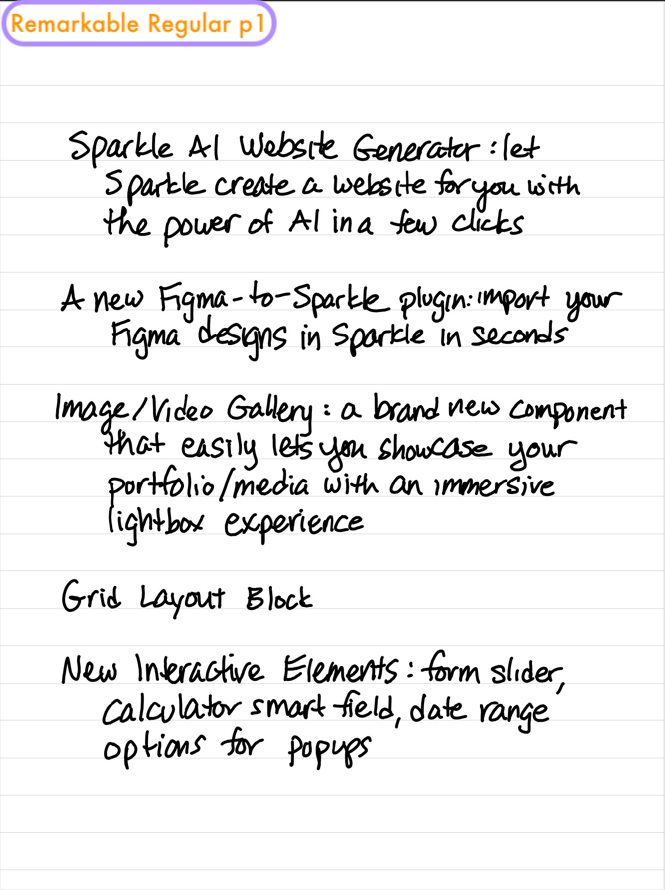
I wrote some words down on the reMarkable 2 tablet. 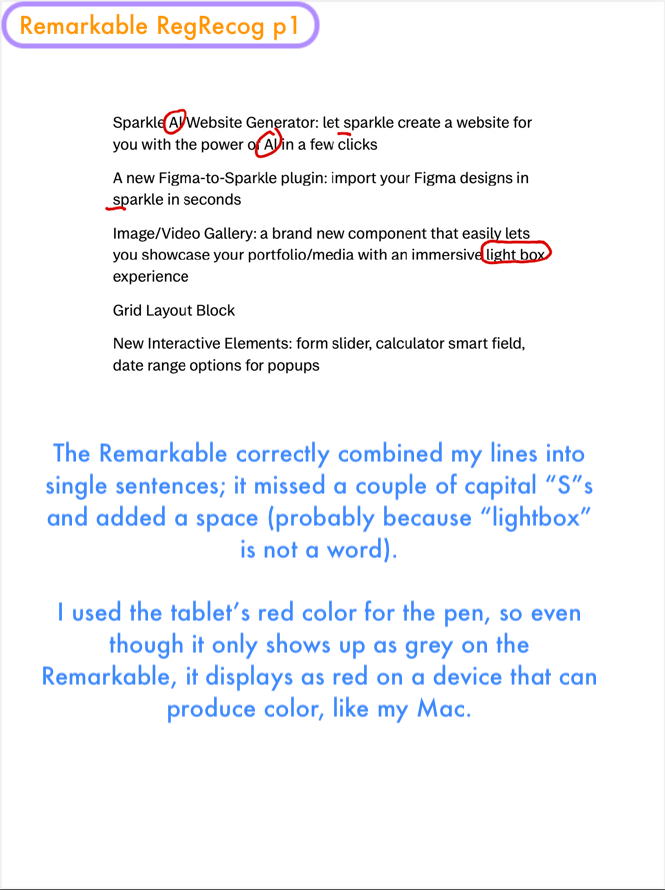
This page is added to the reMarkable note after the handwritten one. 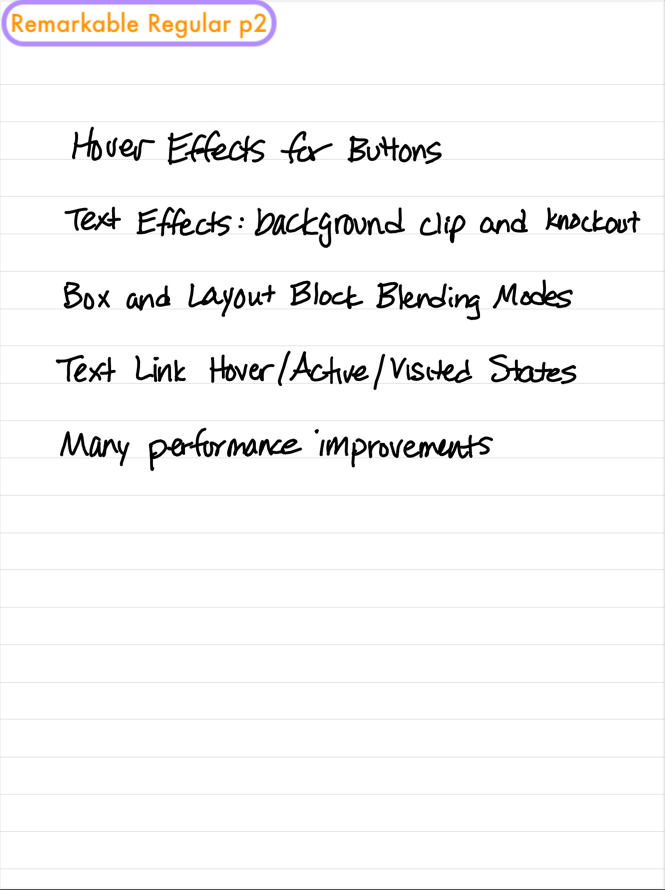
The second page from the reMarkable test. 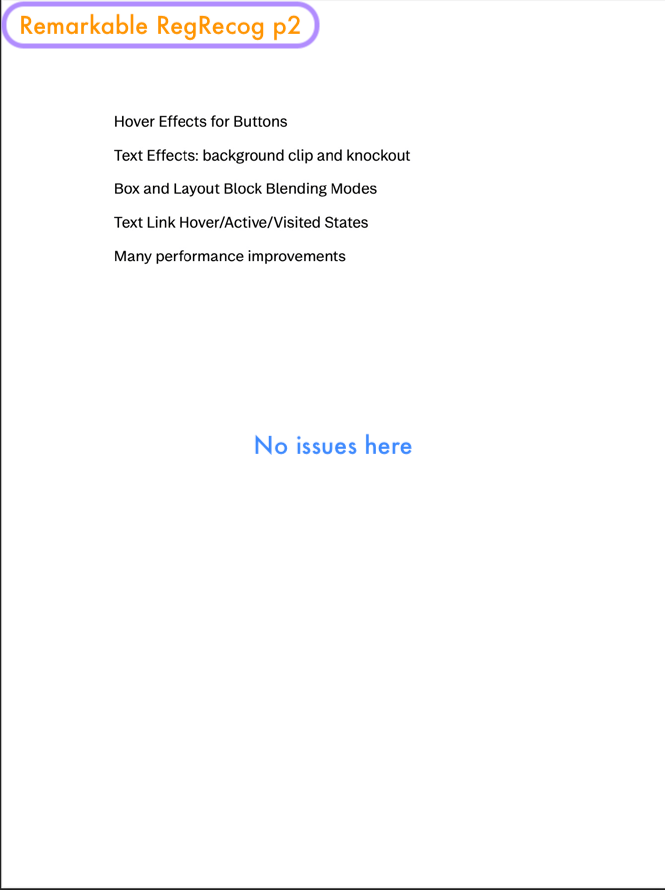
Overall result from running text recognition here was good. 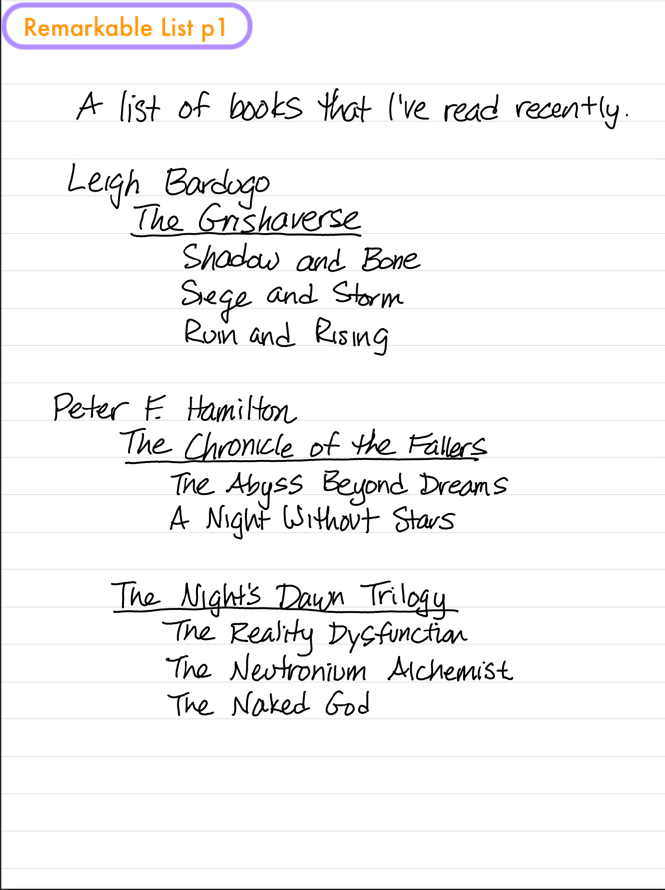
reMarkable: now testing lists (first page) 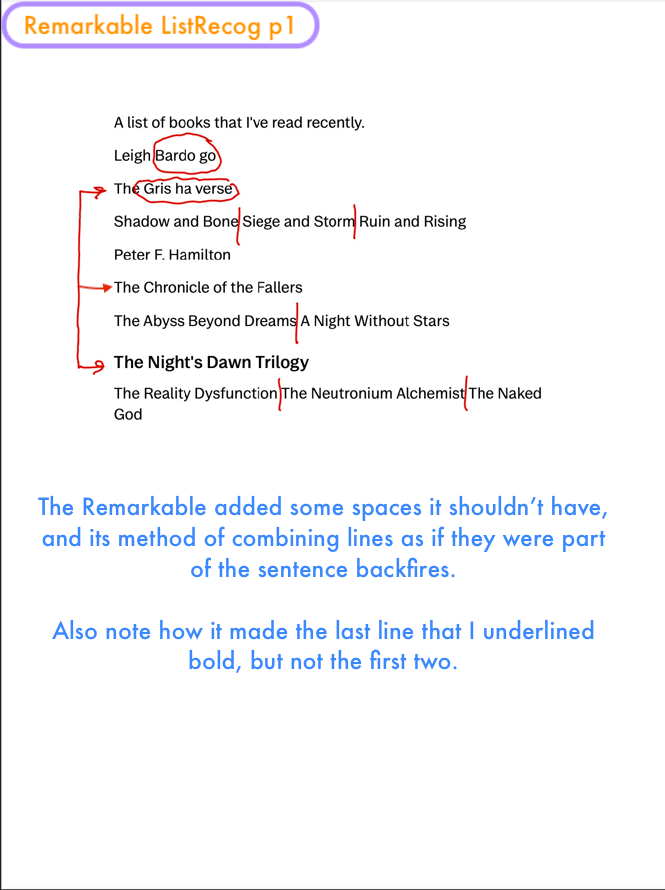
reMarkable lists – recognition of page 1 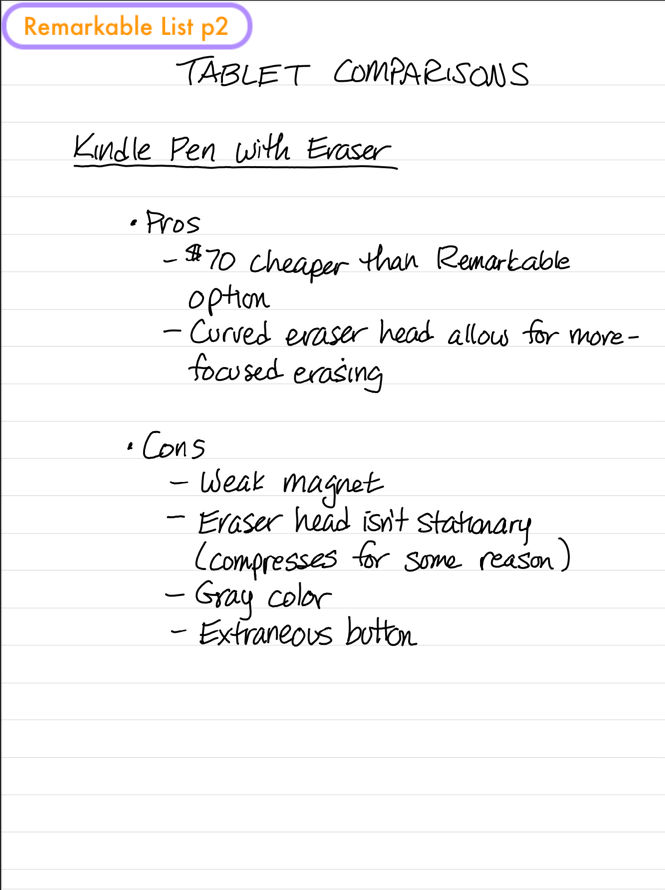
reMarkable: testing lists (second page) 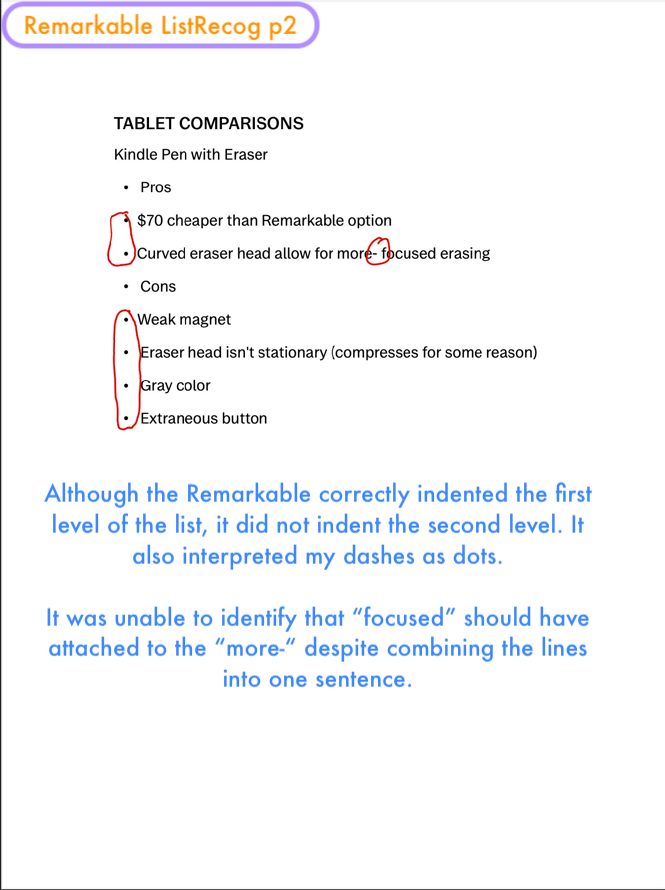
reMarkable lists – recognition of page 2 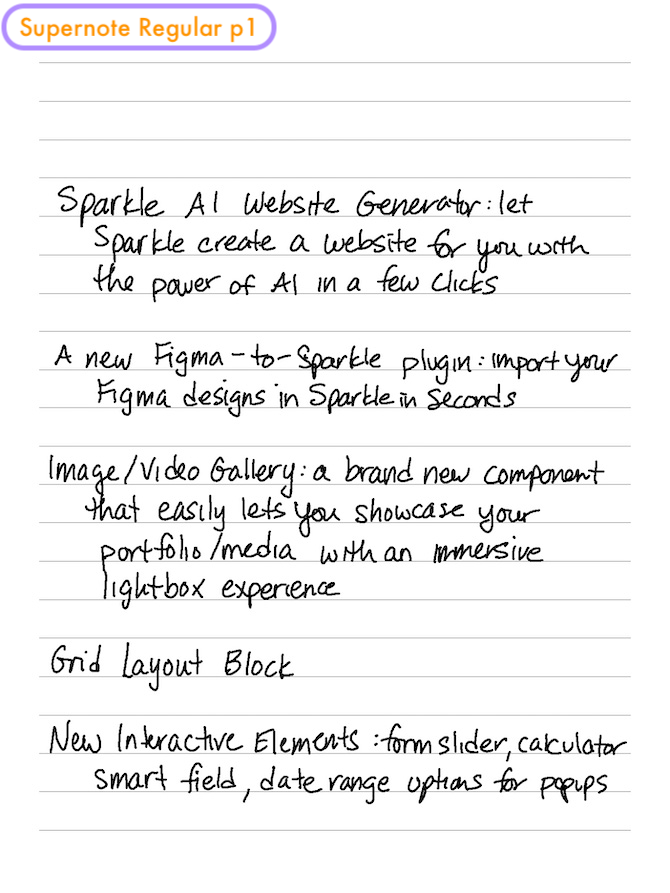
I wrote out the same words a second time, this one on the Supernote A5X. 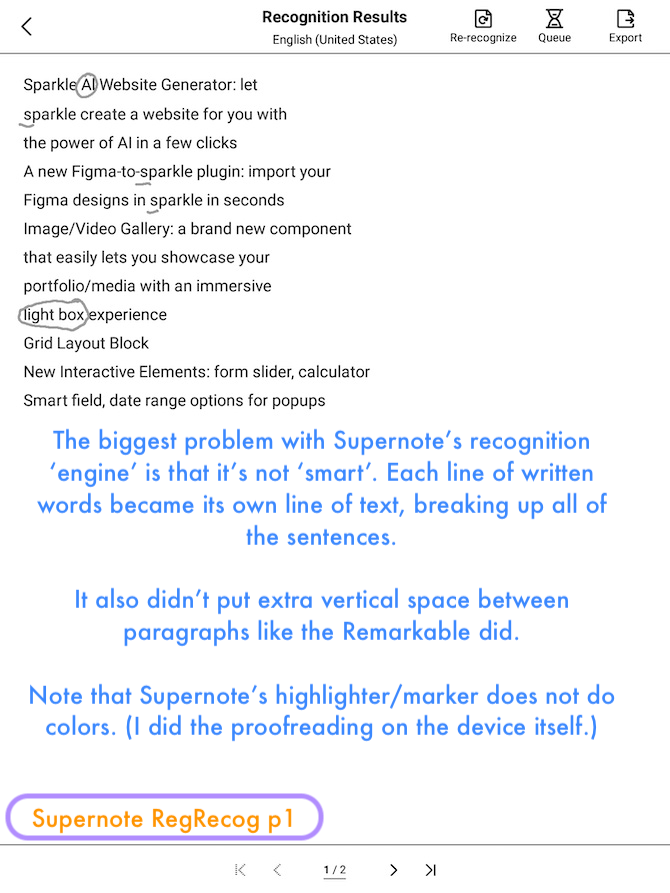
This screen pops up after you run text recognition. It is not added to the note. 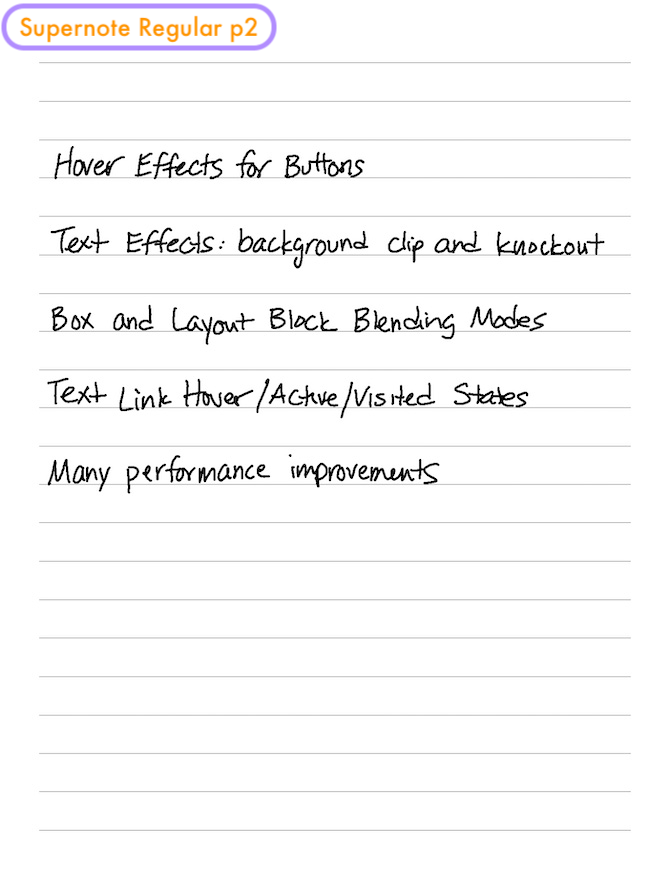
More writing on the Supernote 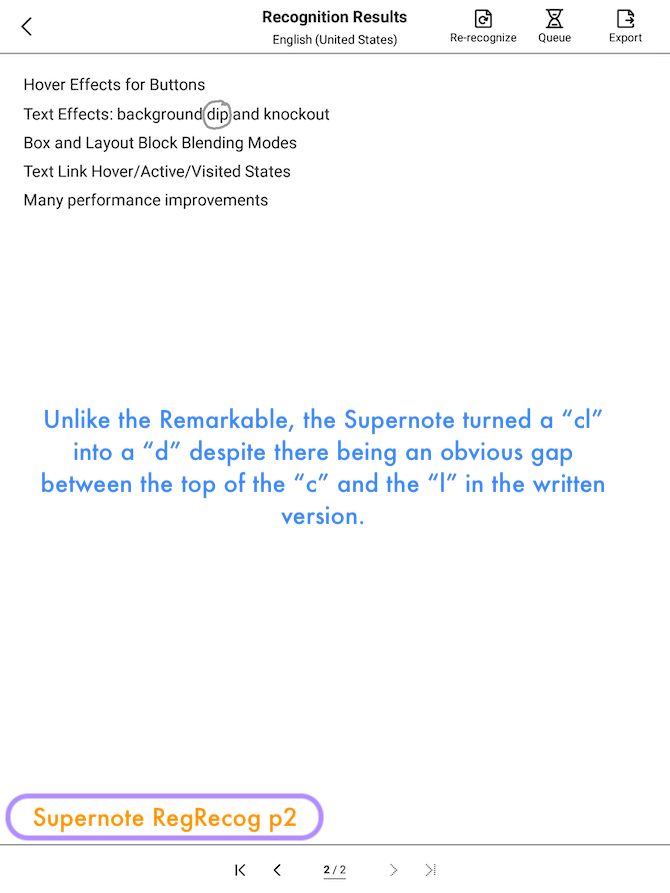
More conversion on the Supernote 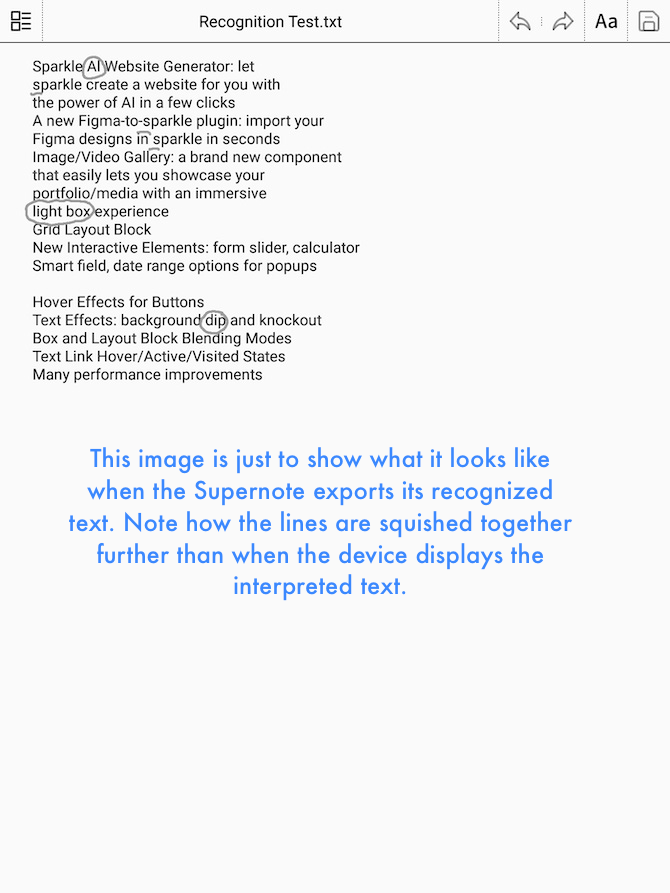
To actually turn the conversion result into a file, you have to export as .txt or MS Word. 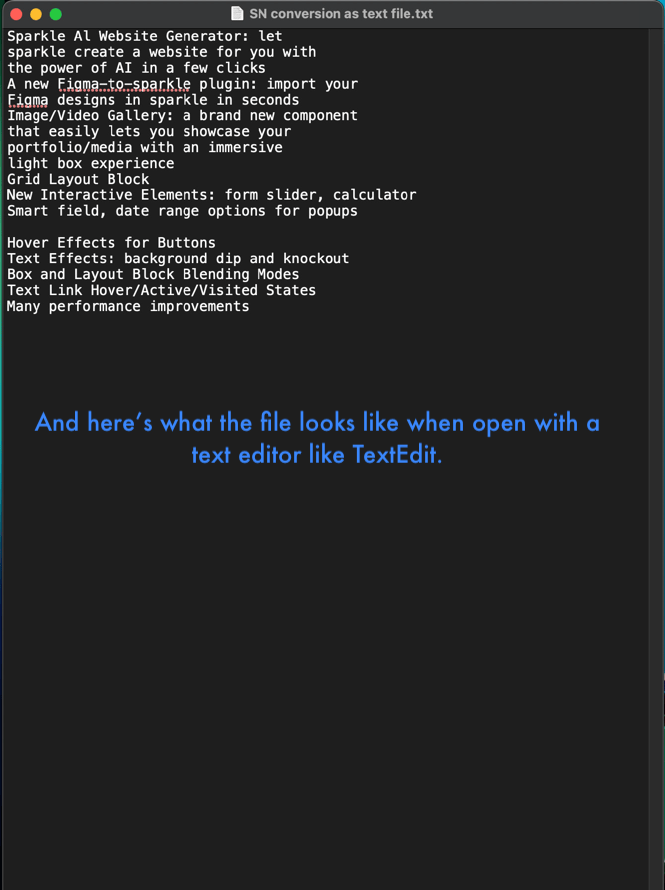
What the previous images looks like when opened in TextEdit (Mac in Dark Mode) 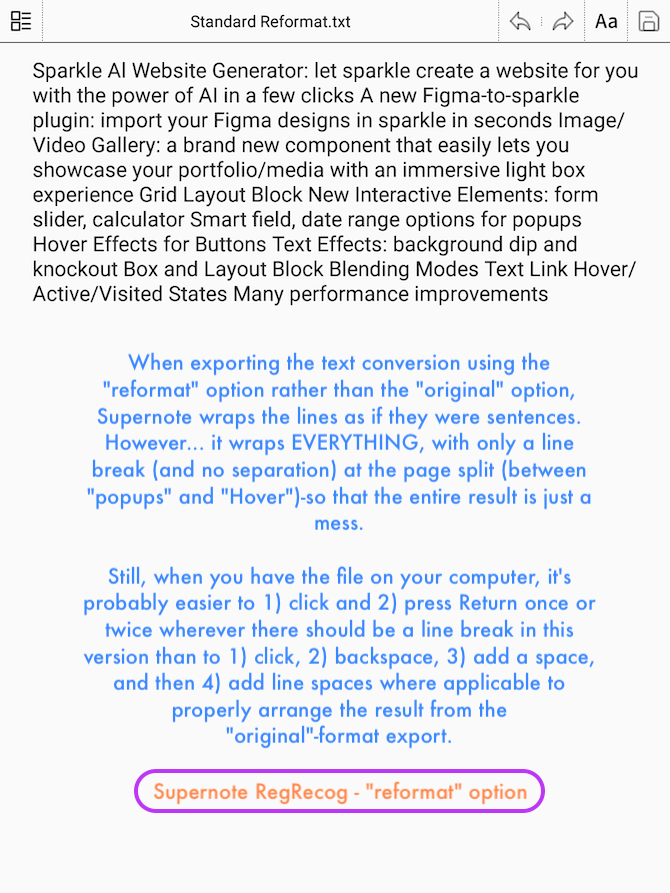
Two options when exporting recognized text to a .txt file: “original” and “reformat” 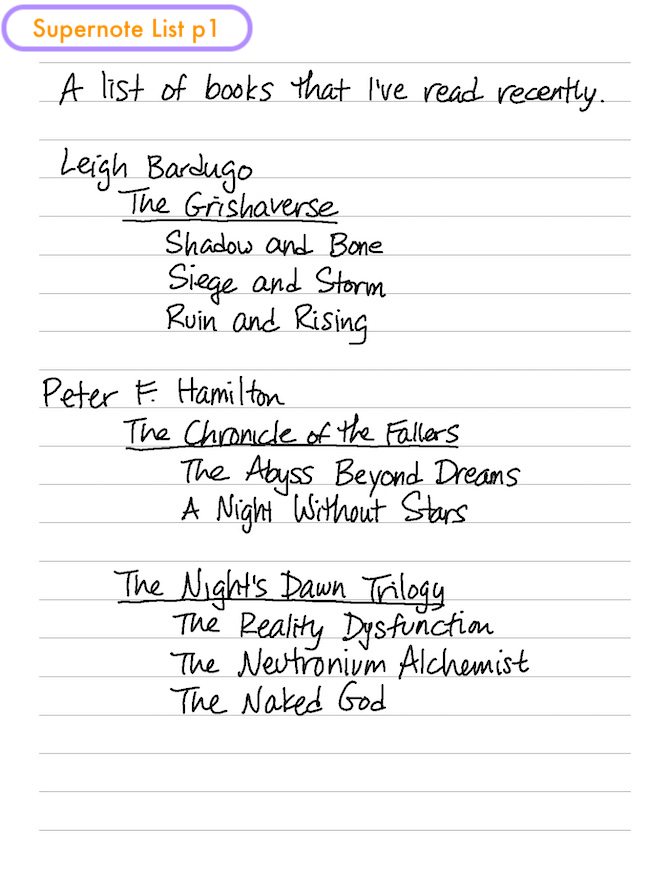
Here’s the first list page, again rewritten on the Supernote. 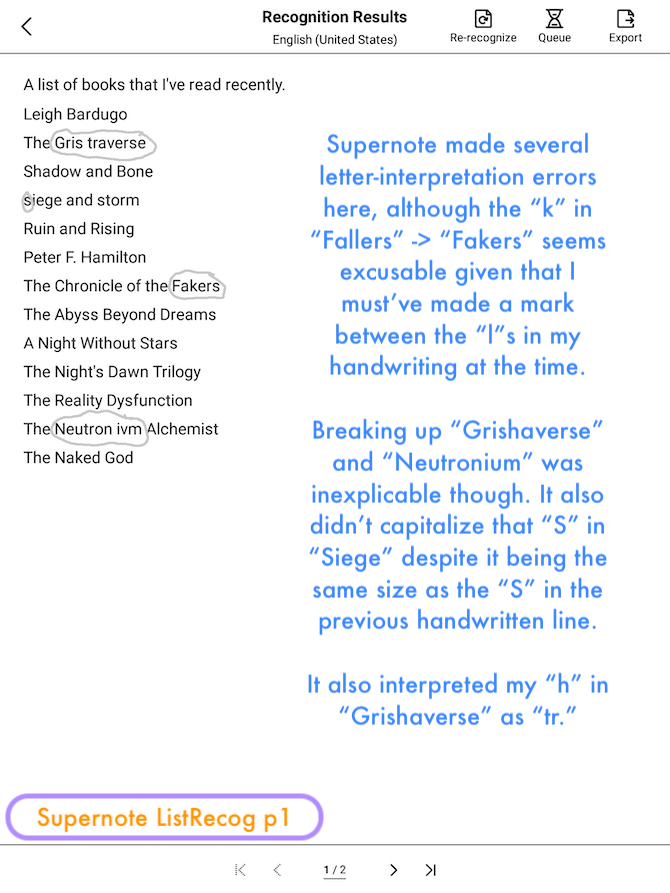
The line break after every handwritten line works better on lists, obviously. 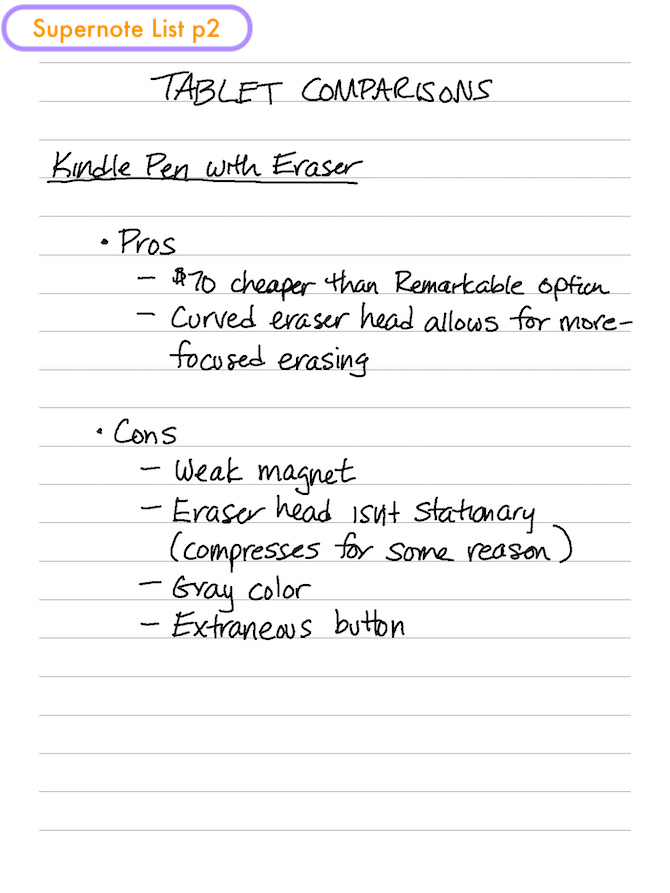
Supernote lists – page 2 (handwriting) 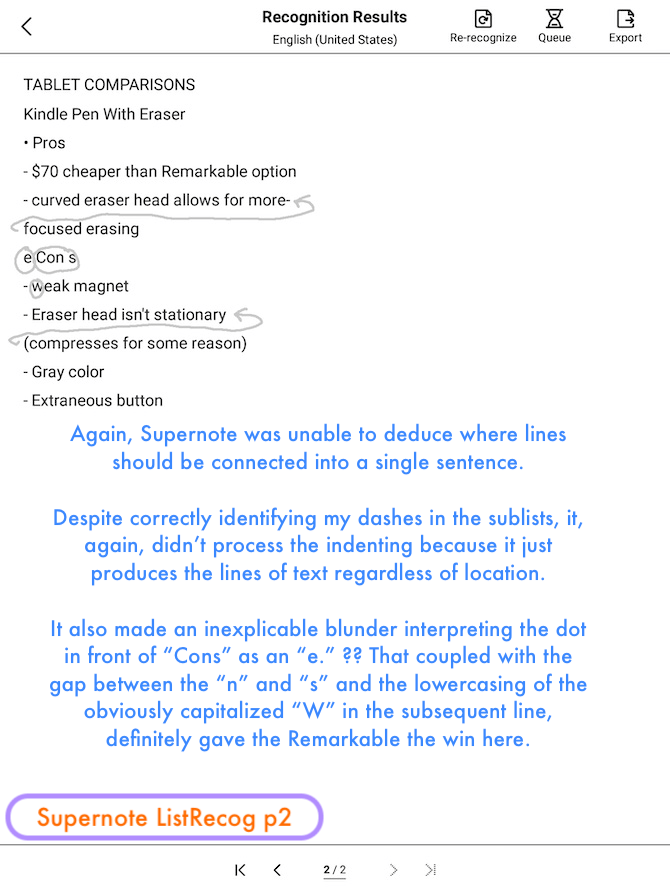
Supernote lists – page 2 (recognized text) 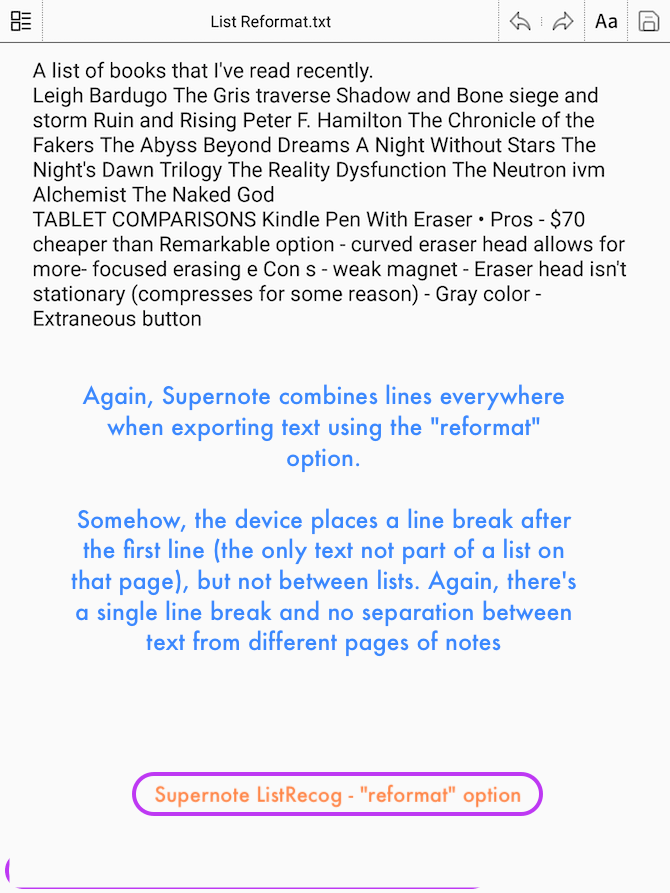
The “reformat” option on the Supernote obviously doesn’t work on lists. 
A document for my job, written on the reMarkable 
Search results on the reMarkable would lead to this page; given that the equations are (expectedly) a mess, I’d need to flip back one page every time I checked out a search result. 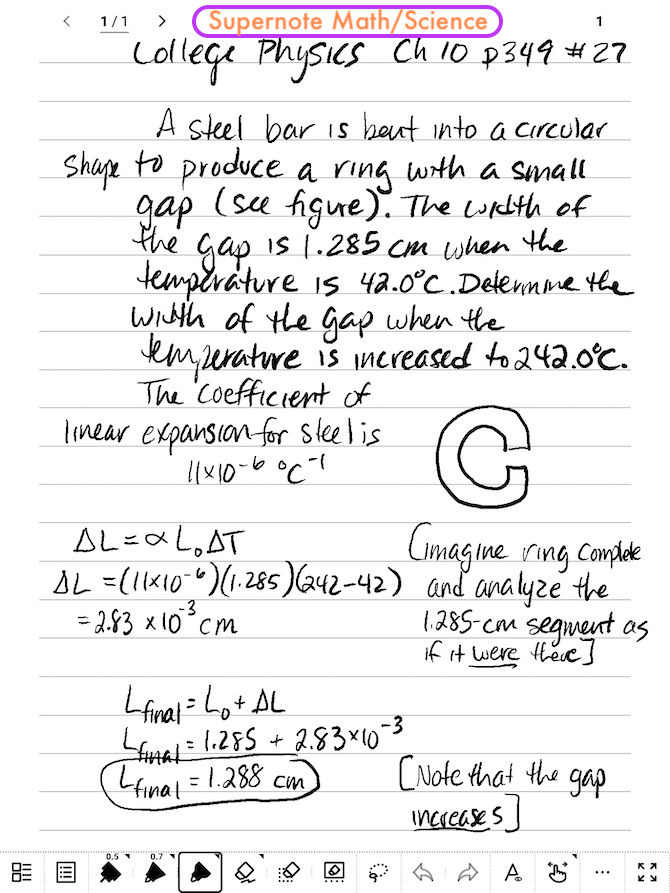
Another job document, this time written on the Supernote 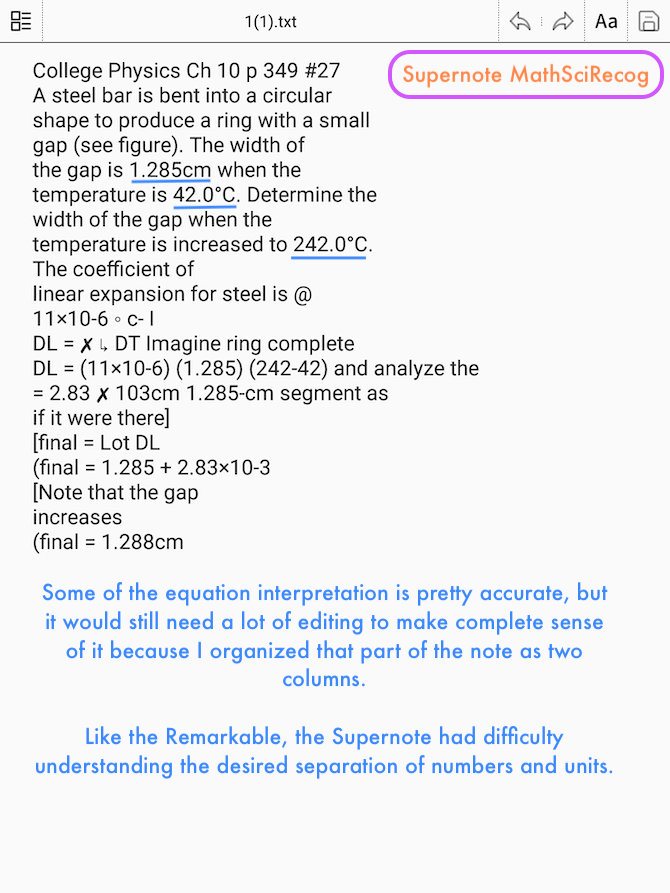
The Supernote faired better with the numbers and equations than did the reMarkable, but it probably had the easier document, too. 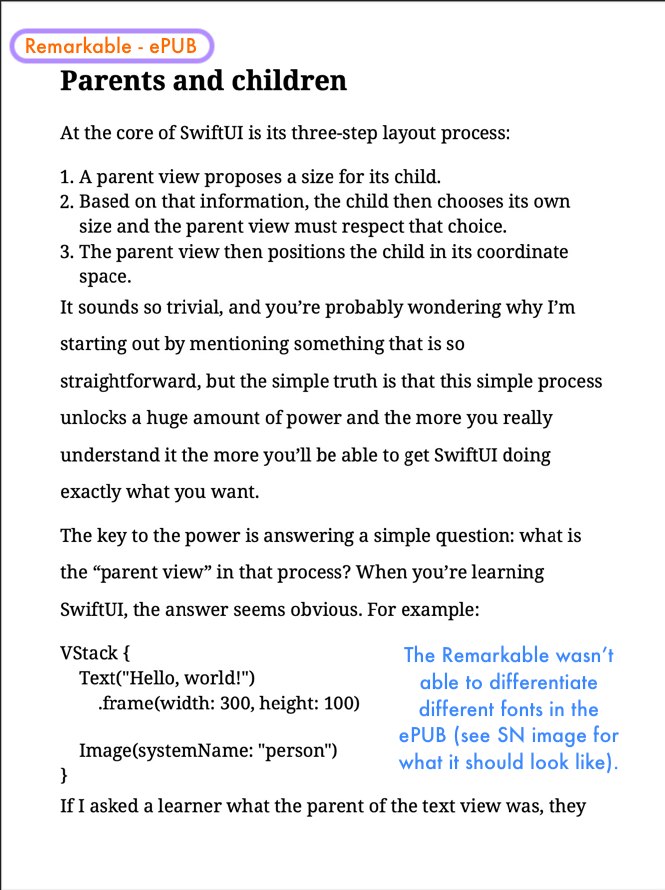
Here, I exported a couple of pages from Paul Hudson’s Hacking with SwiftUI ePUB; the crucial code segments are not interpreted well by the reMarkable. 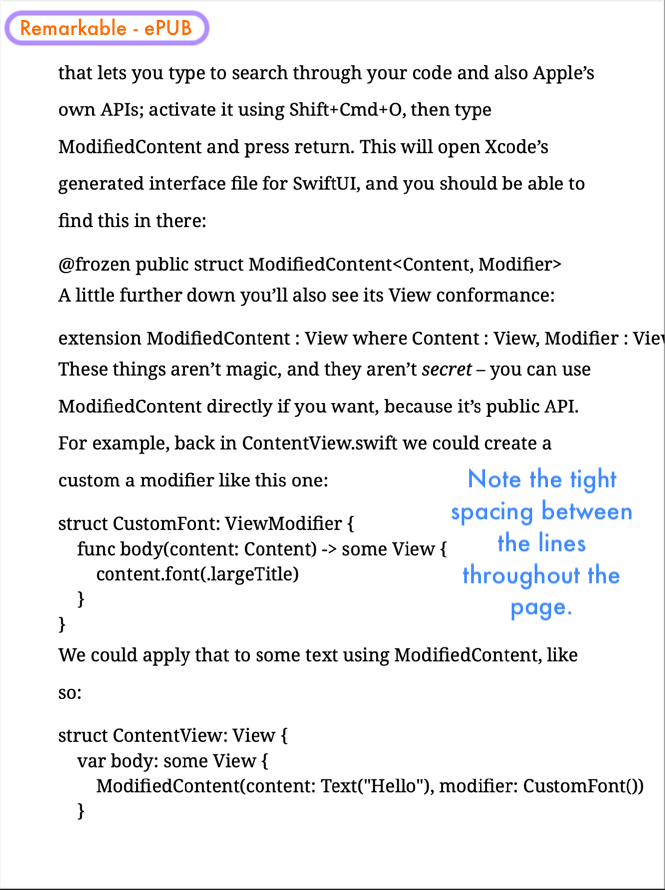
Another page from Hacking with SwiftUI, again on the reMarkable. 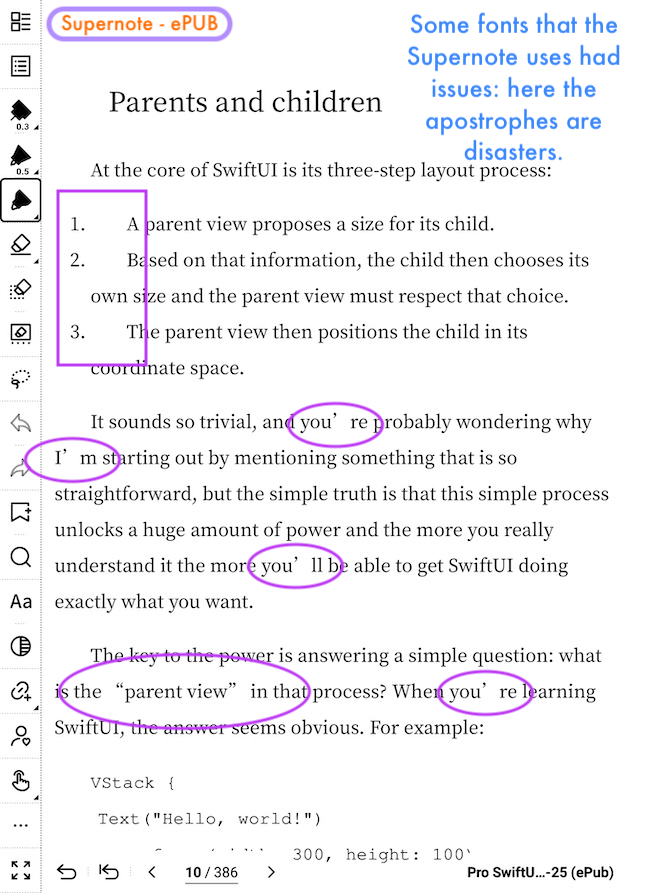
The Supernote has 5 prepackaged fonts (four from one family), but not all of them will work on all ePUBs, apparently. 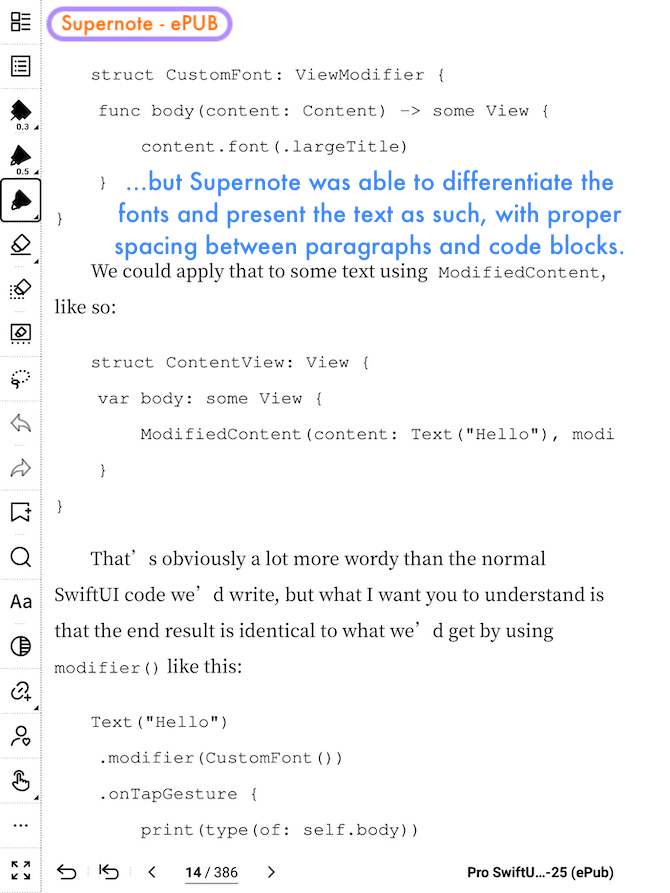
Another page from Hacking with SwiftUI, again on the Supernote. 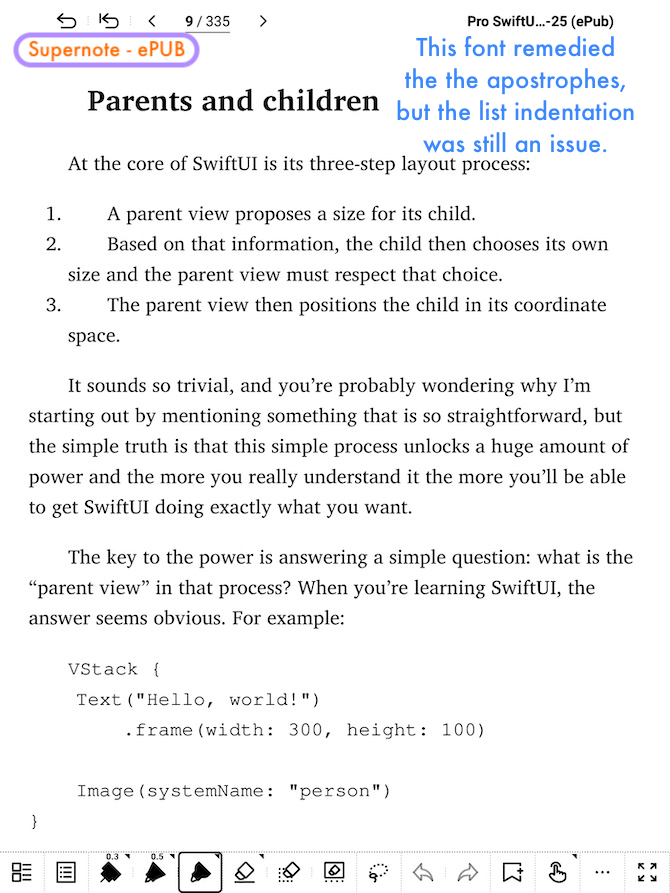
Here, I originally had the Supernote’s toolbar at the bottom of the screen, and then decided to move it to the left…. 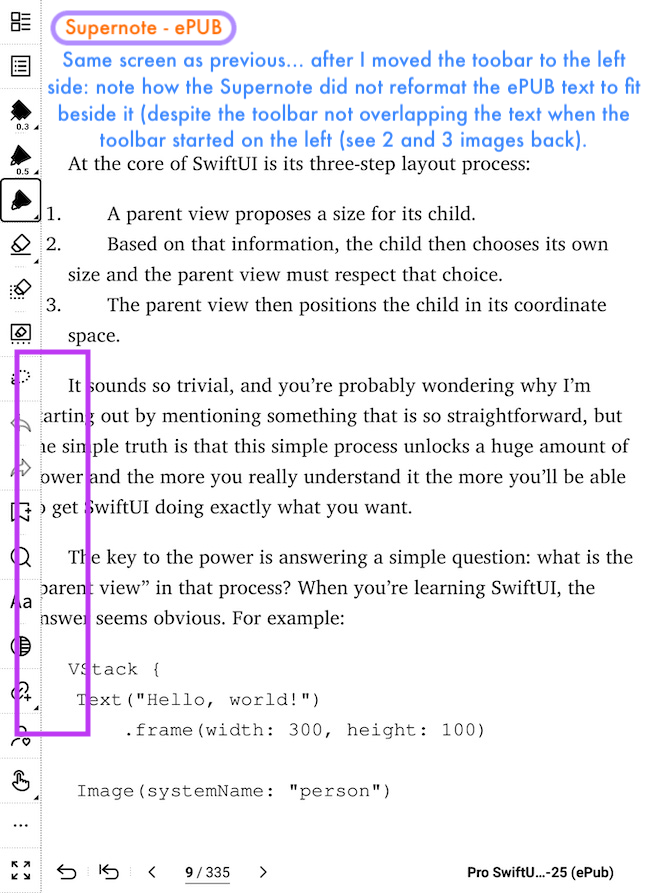
…and the toolbar covered up some text because the Supernote did not reformat the ePUB to fit. 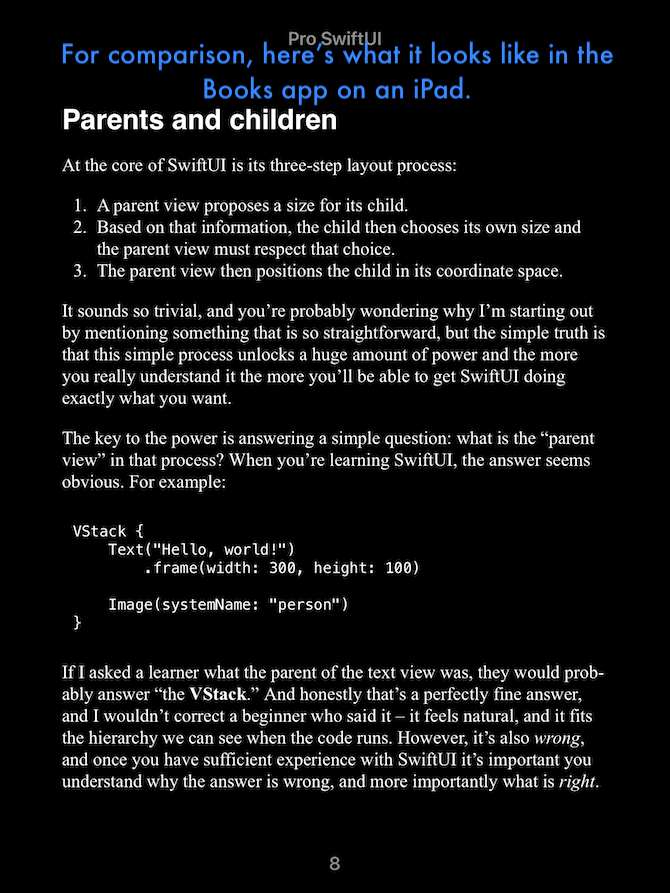
This is what the first page of Hacking with Swift looks like in the iPad Books app (in Dark Mode) 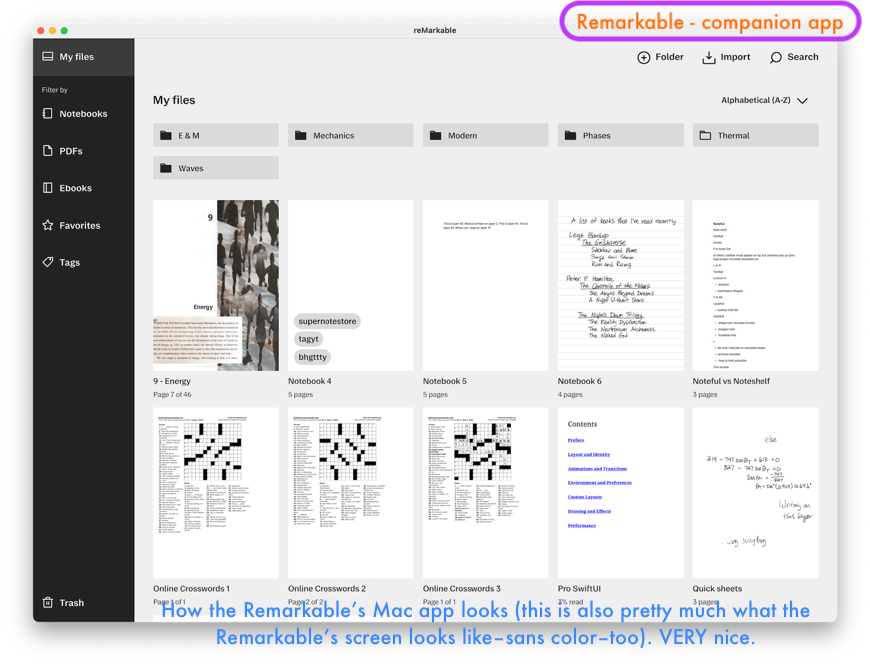
I love the reMarkable’s companion apps. This one’s the desktop/laptop version. (But no Dark Mode adjustment for the right side–it’s always white.) 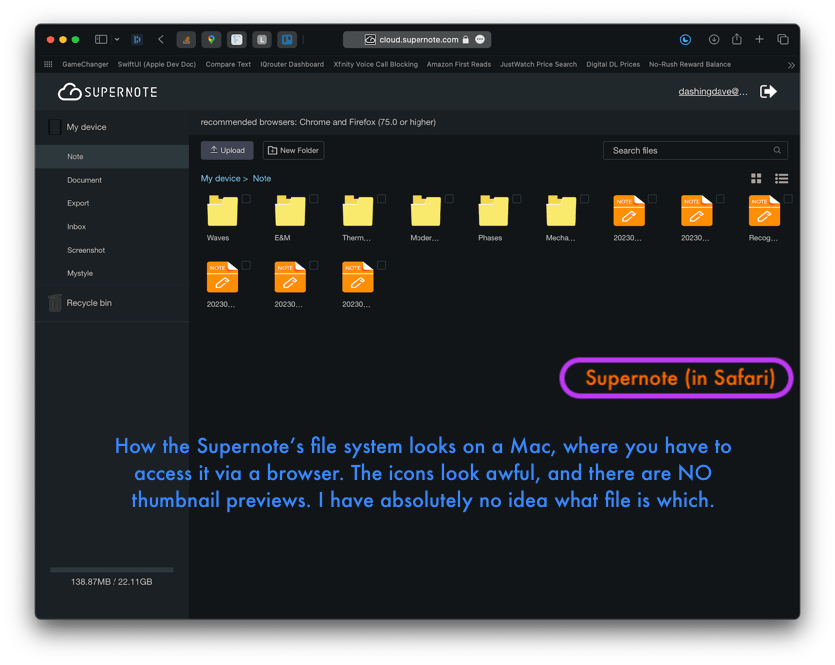
This is Supernote’s desktop/laptop “app”… Safari (or Chrome or….) Yuck. 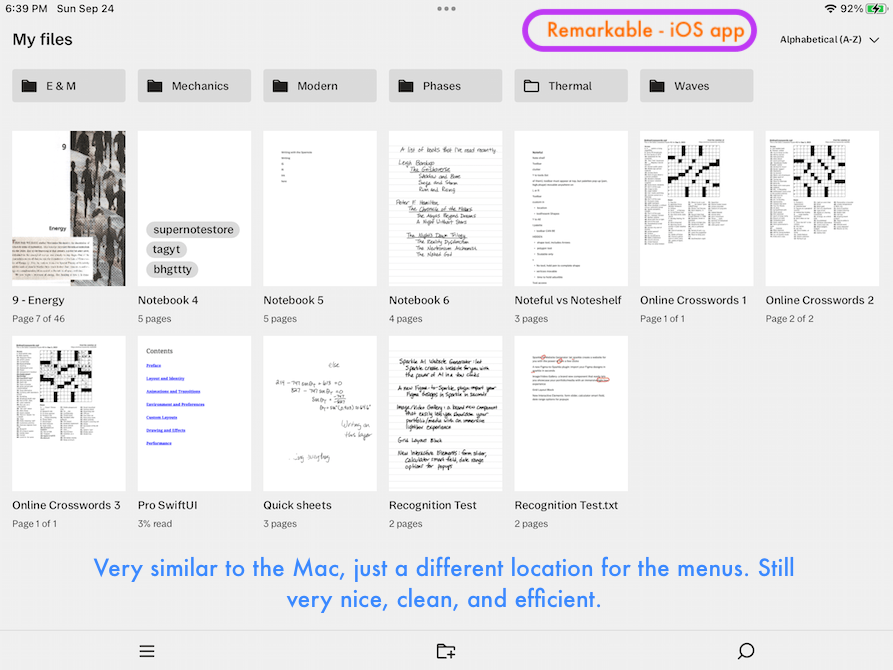
reMarkable’s companion app for mobile (this screenshot is from my iPad–again, no Dark Mode. 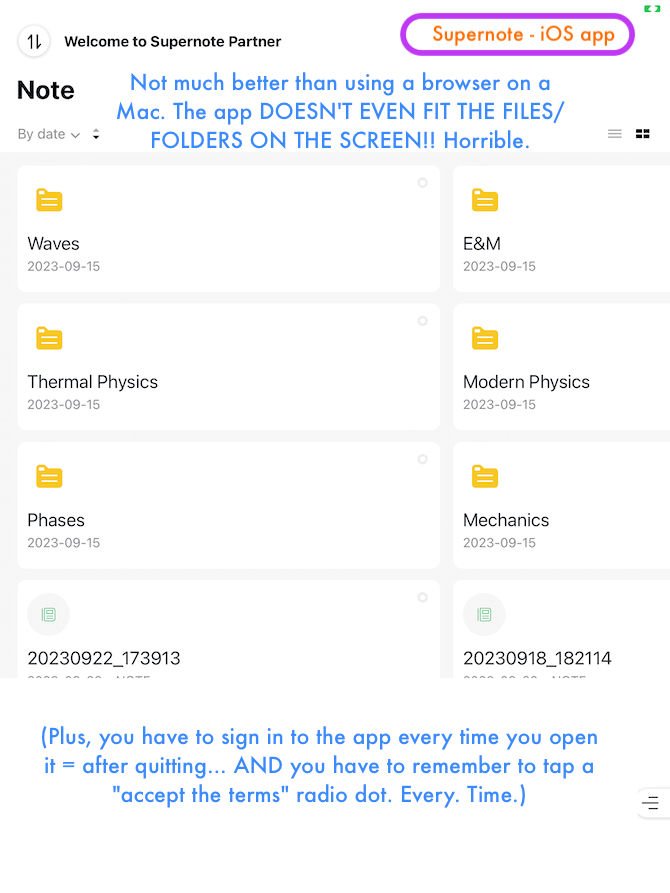
Supernote’s atrocious mobile app. This is an icon-mode screenshot on a 12.9″ iPad Pro. It runs off the screen and there aren’t even thumbnails! Note that this isn’t what the Supernote’s UI looks like.
What I Chose & Why
My goal was to use my current 2nd-generation iPad Pro 12.9″ (2017) tablet as a digital book (to reference textbooks, perform calculations, etc.) and obtain a second tablet as a searchable notepad. So I bought a reMarkable, a Supernote, and an iPad 9 (which I didn’t open, because then I wouldn’t be able to return it to Amazon); and thus began the testing. (I used my iPad Pro to test the writing apps to simulate the iPad 9.)
Despite being the nicer of the two dedicated writing tablets, the reMarkable 2 doesn’t reveal search results within the handwriting itself, and that metal surface is a killer for me. Those were non-starters for me, so I returned it (once I completed my comparison to the other tablets).
After narrowing the field to two options, I realized something: 2024 marks seven years since my Pro’s purchase, which means that next year (for tax reasons), I’ll be able to buy the 7th-generation version that Apple will likely release in the spring or summer. Thus, a third option presented itself: using my current Pro as the ‘notepad’ and the new Pro as the ‘book’… but it’s not an option I could use for the foreseeable future.
Going with the iPad 9 now would result in me owning 3 iPads next year, which I would have absolutely no need for. My Pro has the larger screen/writing area, so I’d be selling the iPad 9. Here’s my cost analysis for keeping the iPad and returning the Supernote (all shipping, taxes, and restocking fees–some estimated–are included in each sub-cost):
$287 for the device; $48 for a gel case, screen protector, and app; -$178 from an eBay sale; $50 lost from returning the Supernote: total cost = $207
Here’s the cost analysis for keeping the Supernote and returning the iPad:
$478 for the device/pen ; -$298 from an eBay sale: total cost = $180
Due to the shipping and restocking fee for the Supernote, keeping it would almost certainly cost me less overall than keeping the iPad 9. So I returned the iPad.
The Supernote does has the five primary features I was looking for, but I wouldn’t rate the quality of any of them higher than “adequate.” And although Ratta updates the software every other month, only 7 of the 22 features they’ve added since the beginning of 2022 (look for “Status: Done” on the Trello page) are ones I care/would have cared about, which indicates that my priorities differ greatly from the average user and the developer and are unlikely to receive fixes anytime soon.
Then, one night, I realized something that sealed the decision for me: the most important thing about my ‘notepad’ is that the handwriting be searchable (i.e., search results would point to handwritten pages, not converted-text ones). If I were to spend the next 6+ months putting all of my work on the Supernote, I would lose search access to all of it when I sold the device–even the mighty Adobe Acrobat can’t search my handwriting (e.g. if I were to export my handwritten notes from the Supernote). I’ll always have an iPad, and apps are nearly eternal (absent a major change like when iOS 10 cam around) as long as you back up your device.
So I wouldn’t be able to sell the Supernote, making the total cost of keeping it $409. I definitely enjoyed the physical sensation of writing on the Supernote, but “a nice pen” is not worth $400. I really did want to keep the device, and I’d probably be fine paying $206 (assuming the pen still cost $44) in its current state, but I just can’t justify spending $415. (Someday it may be worth $415, but if I’m paying for it now, then it should have that value now.). Ultimately, I found the Supernote to be highly overpriced and a disappointment. So I returned that as well.
[In my opinion, for $400+ the Supernote should a) actually recognize handwriting immediately (which is what “real-time” means to me), b) have a much better import/export system (see: reMarkable) with thumbnail previews, c) allow me to completely dictate my “Finder” folder structure, d) have a more appealing Finder (the idea of putting tiny icons inside a giant folder icon is cool but ultimately unattractive), e) organize tags in alphabetical order on the select-a-tag screen, f) select which tools I want in the toolbar, and g) auto-sync.]
It’ll be inconvenient (for various reasons, some physical, which started this whole process) to use my Mac as the ‘book’ with my current iPad Pro as the ‘notepad’ for the next (by my guess of a June release) eight months, but I don’t have the luxury of overpaying for convenience. “Nice” isn’t worth $400. For $400, I expect “awesome.”